

How to scan a QR code from a screenshot
QRAcorn · Updated
To scan a QR code from a screenshot, open the QR code reader and paste the image with Ctrl+V on Windows or Linux, or Command+V on Mac. If the screenshot is already saved, drag the file into the reader. The browser reads the pixels on your device. You can do this on the same screen that showed the code.
Practice with a two-code screenshot
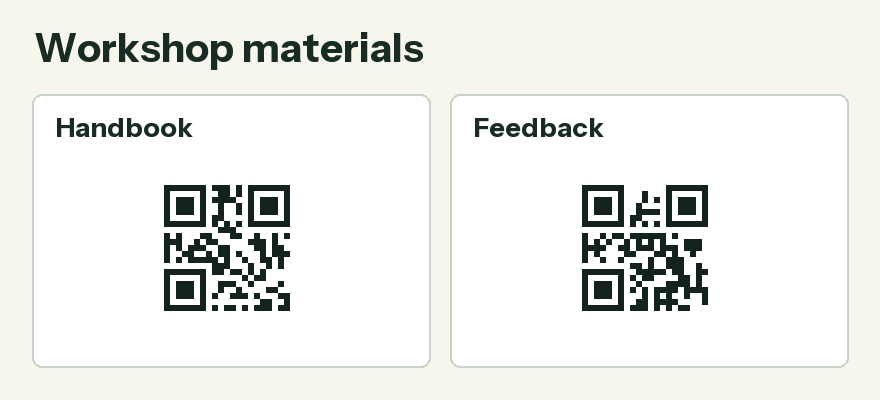
Imagine you attended a workshop and want the feedback code from the handout. Right-click or long-press the picture above and choose Copy image or Save image. In the reader, paste it or choose the saved file.
- Find the square under Feedback on the right side of the image. Use the numbered marker there to select the matching result.
- Read its decoded text. You should see
WORKSHOP-FEEDBACK. The square on the left givesWORKSHOP-HANDBOOK. - Copy the feedback result and paste it into a scratch note. Only the decoded words should appear. Both codes contain plain text, so there is no website to open in this exercise.
The printed word underneath a QR code is a label supplied by the designer. Comparing the actual result with the label can catch a mix-up before you share a link with someone else. When several squares appear together, use their positions to identify them. The first item in a result list may represent a different part of the image.
When the screenshot is in a message
Open the original attachment in the chat before copying. Small previews can lose the fine grid. The image menu’s Copy image action places image data on the clipboard. Copy link gives you the address of the attachment. If pasting into the reader does nothing, save the attachment and use the file picker instead.
If the chat only shows the code inside a larger conversation, take a capture of just that part of the screen. Include a strip of blank space on all four sides of the code. This also keeps surrounding messages, names and avatars out of the saved picture. On a phone, choose the saved screenshot from the photo library. For desktop shortcuts, see how to capture a code on your computer.
When only one code appears
If the reader finds the handbook but misses the feedback code, start from the original picture and crop around the right-hand square. Keep the three large corner patterns and the light border intact. Retry that crop by itself. For a slide or document you can reopen, zoom in before taking another screenshot. Enlarging a screenshot taken at thumbnail size preserves its blur. See the visual guide to QR codes that will not scan for a side-by-side example.
Check what you copied
A QR result can be a URL, a message or connection details. For a URL, inspect the full address before you visit. Opening it contacts that destination. A sign-in code or ticket may contain a private token even when the picture looks ordinary. If you need help reproducing a reading problem, use the practice picture above and describe what happened. Keep the original ticket and its decoded value private.