

How to read a QR code from a PDF
QRAcorn · Updated
Open the PDF in your usual viewer, zoom in on the QR code, and capture that part of the page. Choose or paste the resulting image in the QR code reader. The reader takes an image, so the original PDF can stay in your document viewer.
Capture the page at a useful scale
- Find the right page and read the caption beside the code. Supplementary materials and feedback forms may sit on the same page.
- Increase the zoom in the PDF viewer until the small squares have distinct edges and the entire code fits on screen. Zooming before capture can reveal more detail when the source contains vector artwork.
- Capture all four sides with a little background around them. Paste or choose that image in the reader.
- Compare the text or URL you get with the caption. When checking several pages, note the page number and result together to avoid swapping two valid links.
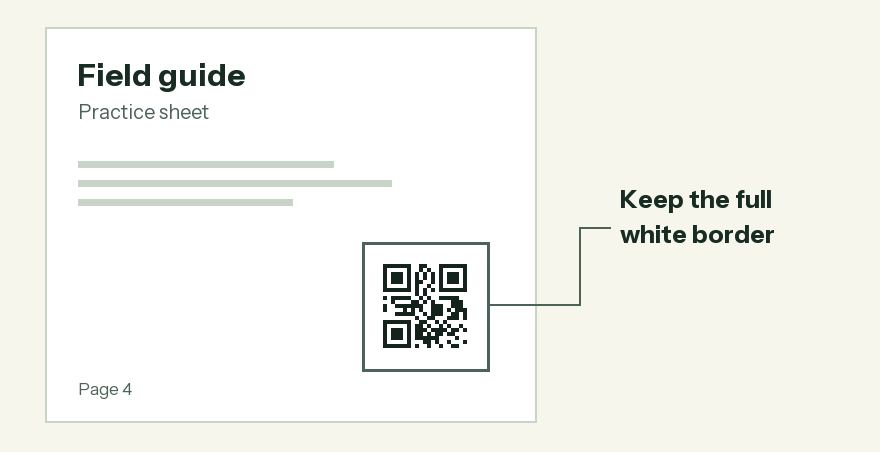
The example above contains the text FIELD-GUIDE-PAGE-4. You can copy the picture into the reader and compare the result with the printed page number.
What if zooming makes the code blurry?
A scanned PDF can contain a small, already-compressed image. If the pixels soften as you zoom, try obtaining the original handout or the QR artwork from its author. Taking repeated screenshots of the same blur rarely helps. A link caption can also be out of date even when the code decodes correctly. For more targeted checks, see why a QR code won’t scan.