

QR code not scanning? Find the cause
QRAcorn · Updated
Begin by finding out which step failed. If the reader returns text or a URL, decoding succeeded. If it returns no result, work through the image checks below, starting with the original file.
Check the corners and the space around them
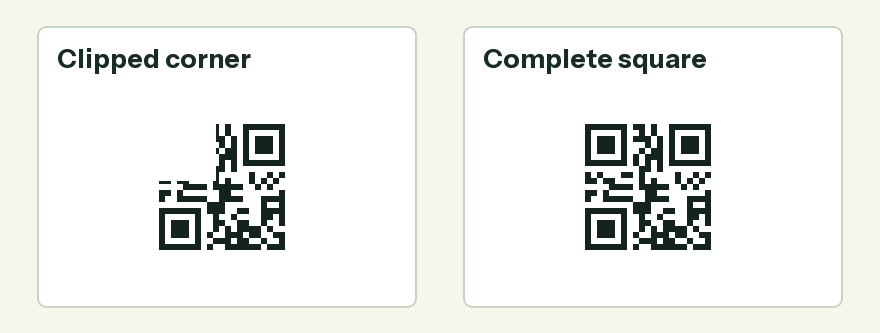
The large square patterns in three corners help a reader locate the grid. Check for a crop, caption, cursor or sticker covering any of them. Select the whole symbol and preserve its surrounding margin. The right side of the sample above contains CHECK-BORDER. Try it to check that the reader can receive an image on your device.
Recover detail before you retry
- Chat or email thumbnail: open the original attachment or request the source PNG. Saving a small preview at a larger size preserves its blur.
- A photo of a screen or printout: photograph it head-on in even light. Move glare away from the code and focus on the small squares. For a code already on your screen, a screenshot avoids reflections.
- Colored or customized artwork: try the original black-on-white version. Keep enough contrast across the entire grid, including behind a logo.
- Several codes on a page: crop around one complete symbol and retry. Leave enough space to separate it from neighboring codes.
When the URL decodes but does not work
Compare the decoded address character by character with the address the sender intended. An expired destination, renamed page or broken redirect can prevent a working QR code from opening its target. If you encrypted, shortened or redirected a URL elsewhere, check that service separately. If you own the artwork, use the static QR generator to recreate it with the corrected text, then scan the exported image before distributing it.